How to Download Uber Driver Statements and Trip History
For the most complete trip and payment history, request your full Uber ZIP. Use a weekly, monthly or annual PDF for a summary of a specific period.
Download a weekly earnings statement
On a computer, sign in to the Uber Driver Dashboard. Open Earnings, then Weekly Statements. Choose a completed week and select Download PDF.
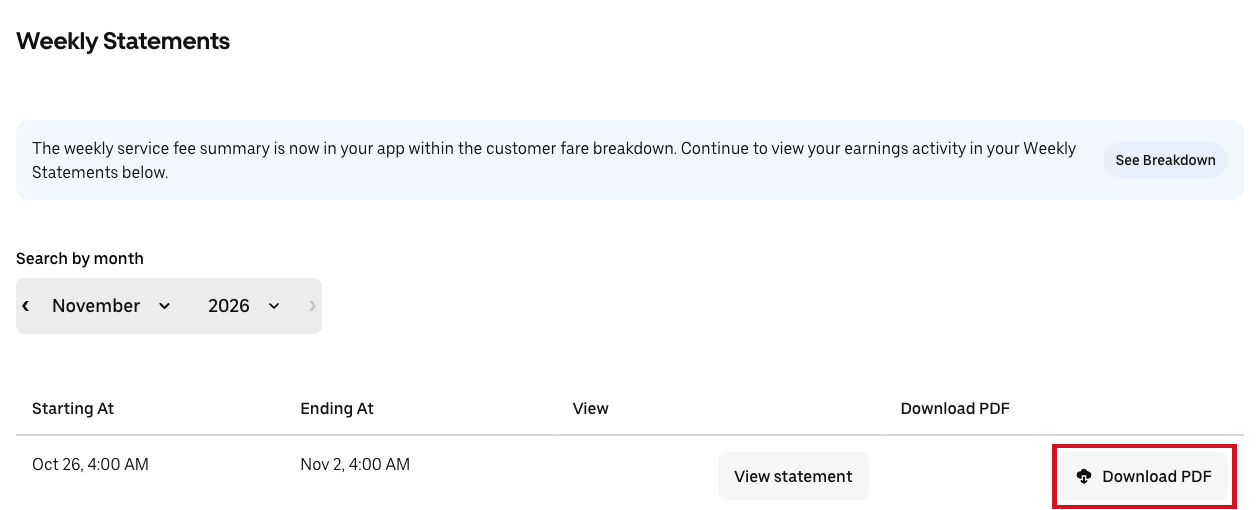
Download a monthly or annual summary
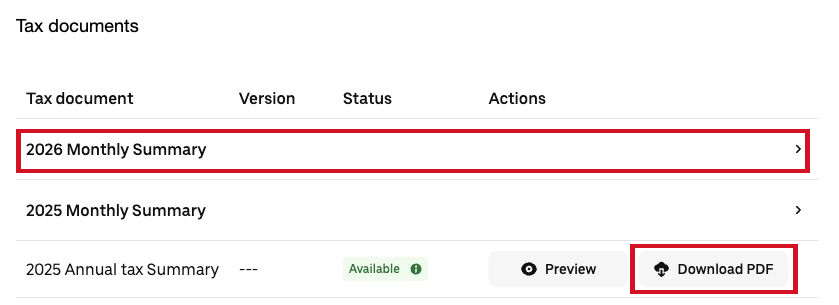
Open Tax information in the Driver Dashboard, then download the available summary for the month or year you want.
Request your Uber driver archive
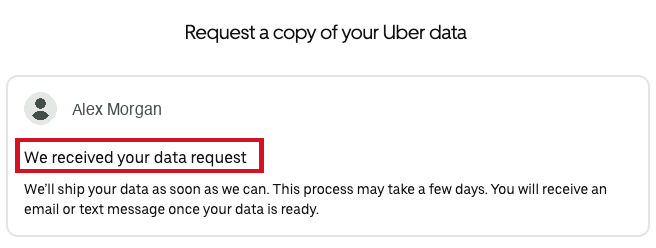
Open Uber’s Download Your Data page and sign in to your driver account. Choose Request Your Data. Uber shows a confirmation after you request it. When Uber emails you, sign in again and download the ZIP.
Upload the original ZIP to RideWage. If it exceeds the upload limit, upload the Driver Lifetime Trips and Driver Payments CSVs separately. RideWage reads the supported trip and payment records and shows identifiable Uber Eats earnings in My Data.
For hourly earnings, share an earnings screenshot with the total and time online for the same period.
Open Uber Download Your Data →
Share a screenshot instead
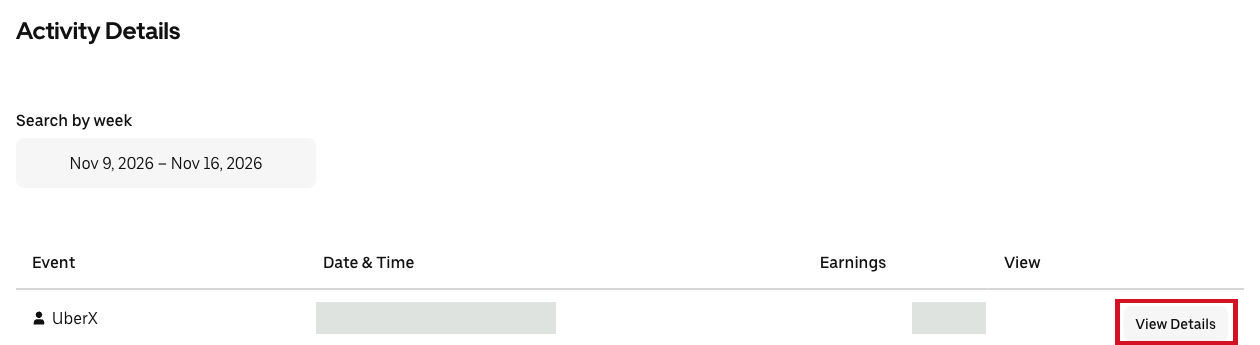
In the Uber Driver app, open Earnings and choose a day or week that shows total earnings and online time. To share an individual trip, open Activity in the Uber Driver Dashboard, choose View Details, then capture the pay, time and distance. Cover passenger names and street addresses.
See Uber earnings screenshot examples →
See what other drivers earn
Your files stay private. By sharing data, drivers can compare pay by city and vehicle and discuss what they find in the driver chat.